Wipe
Overview
The Wipe was one of the first location aware effects in Vixen. The goal of this effect is somewhat similar to the Chase, however it is aware of the position of the elements as defined in the Preview. It uses this location awareness to simulate a chase across all of its elements in a Wiping fashion.
Behavior
Since Build 1448.
-
Across Elements/Groups is the default behavior and is equivalent to how the effect has always acted. The Wipe collects every element under the target and calculates a single bounding area, so the wipe crosses the whole combined target as one pass.
-
Each Element/Group applies an independent Wipe to each child element or group instead of combining them into a single pass. Each child gets its own local bounding area, so the Wipe restarts for every group. This is useful for applying the same Wipe to, say, each Arch in a group rather than wiping across all the Arches together.
The Behavior section, and the Depth section below, only appear when the target has enough levels in its hierarchy for this choice to matter, or when more than one element/group is targeted. If only a single target with a shallow hierarchy is selected, Wipe always behaves as Across Elements/Groups.
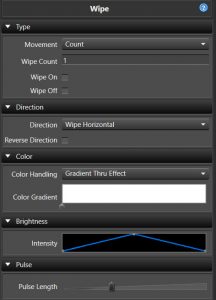
Type
- Movement This sets the source of timing for the wipe.
- Count This sets the number of wipe passes in the timespan of the effect.
- Wipe Count The number of wipes.
- Wipe On When enabled, the wipe will maintain the elements in the on state as the wipe moves across.
- Wipe Off When enabled, the wipe will start out on and wipe off across the prop.
- Pulse Length This controls the wipe by a measure of the pulse length.
- Duration Sets the length of each pulse in milliseconds.
- Movement This controls the wipe by the Movement curve instead of a fixed count or duration.
- Count This sets the number of wipe passes in the timespan of the effect.
The Wipe on/off options are similar to the Chase extend to start/end options. These are most useful for wiping the stage on or off. The pulses have the same rules as the Chase and need to have a > zero end value for wiping on and a > zero start value for wiping off. The default pulse curve has a zero start and end value, so to use this you would need to adjust to a ramp on for the wipe on case or ramp off for wipe off as an example. Wipe Count, Wipe On, and Wipe Off are only available when Movement is set to Count.
Direction
- Direction It can move in a number of directions: horizontal, vertical, diagonal up, diagonal down, burst, circle burst and diamond burst.
- Reverse Direction When enabled, the direction will be reversed. Only available when the Type Movement is set to Count or Pulse Length.
- Movement When the Type Movement is set to Movement, this Curve controls how the wipe progresses across the elements over time, allowing non-linear motion instead of a constant pace. See Inline Curve Editor.
Movement
- X Offset Shifts the center point of the effect along the X axis. Only available for the Burst, Circle Burst, and Diamond Burst directions, and may not work in all cases.
- Y Offset Shifts the center point of the effect along the Y axis. Only available for the Burst, Circle Burst, and Diamond Burst directions, and may not work in all cases.
Color
- Color Handling This controls how the Color Gradient is applied across the wipe. Unlike some other effects, Wipe has no single/static color mode — it always applies a gradient, just in one of the two ways below. See Inline Gradient Editor. Only available when the Type Movement is set to Count or Pulse Length — in Movement mode the gradient is always applied across the whole effect, and the Reverse setting below is used instead.
- Gradient Thru Effect This will transition the colors on the Wipe over time to match the colors in the gradient. This allows you to have a Wipe that goes from say red to blue over the duration.
- Gradient Across Items The gradient will be applied proportionately over the group of items that the Wipe covers, with each item receiving the color within the gradient that corresponds to its percentage of the entire group.
- Color Per Count When enabled with Gradient Across Items, spreads the color gradient across each individual pass (count) instead of across the full length of the effect.
- Color Gradient Sets the Color Gradient to be used. See Inline Gradient Editor.
- Reverse When the Type Movement is set to Movement, this reverses the color and Curve depending on the direction the movement curve is heading, instead of following the Reverse Direction setting.
Brightness
- Intensity This sets the Curve that controls the intensity of the color over the effect. See Inline Curve Editor.
Pulse
- Pulse Length The pulse length is also similar to the pulse overlap feature of the Chase and allows for the pulses to be adjusted to smooth out the Wipe or lengthen the amount of visible time any part of the lights are lit. Available when the Type Movement is set to Count or Movement.
Depth
Since Build 1448.
- Levels Deep Only available when Behavior is set to Each Element/Group and a single target is selected. Controls at what level of the target’s hierarchy each independent Wipe is applied. Depth choices that would simply resolve to individual leaf elements are excluded from the list since they aren’t useful for this effect. When more than one element/group is targeted, each selected target is treated as its own independent group and this setting doesn’t apply.
Feedback
Was this page helpful?
Glad to hear it!
Sorry to hear that. Please tell us how we can improve.