Element Tags
Overview
Element Tags let you label elements with simple organizational or workflow metadata. See Element Tags in the Display Setup section for a full description of the three built-in tags — Deprecated, Hidden, and Prop. The Sequencer has its own tag assignment menu on the element row list, plus tag-driven behavior specific to sequencing that isn’t present in Display Setup or Preview Setup.
Assigning and Removing Tags
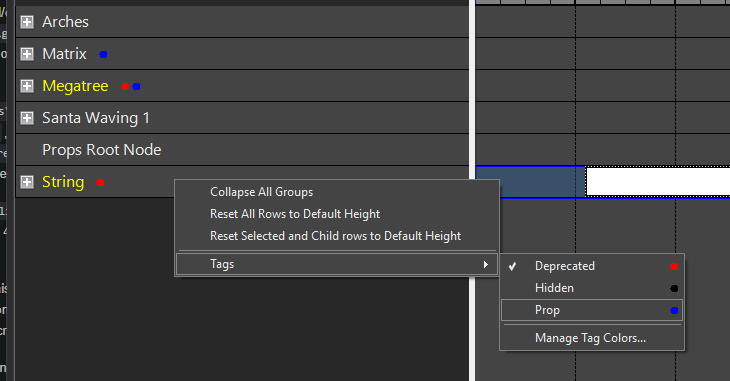
Right-click one or more element row labels in the Sequencer and choose Tags from the context menu. As in Display Setup, the submenu lists every tag in the catalog with a checkmark showing whether it’s assigned to your selection, and clicking a tag toggles it for every selected row. Tag assignments made here are saved immediately — there’s no separate save step.
(Hint - When multi-selecting several rows, maintain the Shift or Ctrl modifier to retain the multi-select when you right click.)
Hold Ctrl while clicking a tag in the submenu to apply the change to all children of the selected row(s) as well, not just the selected row(s) themselves.
Tag Color Dots
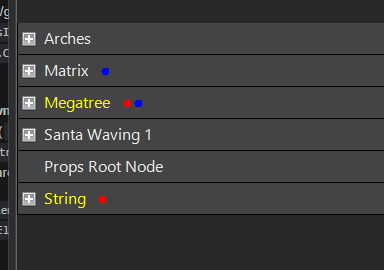
Each tagged row shows a small colored dot after the element’s name for every assigned tag that has a color, ordered left to right by the tag’s sort order — the same dot treatment used in Display Setup and Preview Setup.
Showing and Hiding Hidden Elements
By default, elements tagged Hidden — and all of their descendants — are hidden from the Sequencer’s row list each time you open a sequence. To show them again, enable View > Show Hidden. This setting only affects the current editing session: it isn’t saved with the sequence or your profile, so Hidden elements are hidden again the next time you open the sequence.
Deprecated Elements
Tagging an element Deprecated signals that you want to stop sequencing against it, and the Sequencer enforces that:
- You can’t add a new effect to a Deprecated row. Dragging an effect from the effects palette onto the row, pasting effects onto it, and the row’s own Add Effect(s) context menu entry are all blocked. While dragging, the cursor shows the drop is not allowed; when pasting, a status bar message explains that the row was skipped — effects pasted onto other, non-deprecated rows in the same paste are unaffected.
- Moving an existing effect from another row onto a Deprecated row is blocked the same way.
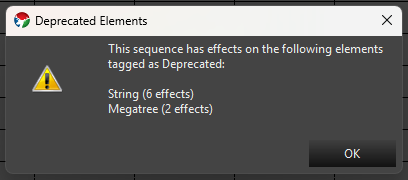
- When you open a sequence that already has effects on a Deprecated element, Vixen shows a one-time dialog listing the affected elements, and how many effects are on each, so you’re aware of them. This is informational only — it doesn’t block you from continuing to work in the sequence, and it doesn’t remap or remove the existing effects.
Removing the Deprecated tag from an element lifts all of these restrictions.
Managing Tag Colors
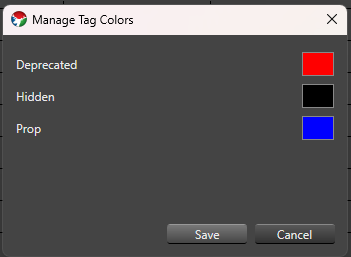
Choose Tags > Manage Tag Colors… from the row context menu to open the same Element Tag Manager described in Element Tags under Display Setup. Color changes made here are saved immediately.
Feedback
Was this page helpful?
Glad to hear it!
Sorry to hear that. Please tell us how we can improve.