Face Property
Overview
The Face property lets you map individual elements to mouth phonemes and to the other parts of a singing face — eyes open, eyes closed, and outline — plus a color for each. It’s the authoring side of a pair of features: once elements are mapped here, the LipSync effect renders them in the Sequencer when its Mapping Type is set to Face Mapping. This is the same relationship the newer State Property has with the State effect, except Face is purpose-built for singing faces and their phoneme codes.
If you’re using LipSync’s Image Mapping type instead — drawing a mouth-shape image onto a pixel matrix rather than mapping individual elements — you don’t need a Face property at all; see Image Mapping below.
Adding the Face Property
- In Display Setup, select all of the individual elements that make up your face prop’s mouth, eyes, and outline — every element that needs its own phoneme or component mapping. This is usually many leaf elements (individual pixels or segments), not a single parent group.
- In the Selected Item(s)/Configure section, press Add Properties. In the Select Item dialog, choose Face and press OK. Every element in your selection gets its own Face property.
- With Face selected in the Configure list, press Configure. Face provides its own setup wizard instead of a plain settings dialog, so this opens the Face Setup window directly, with one row for every element you selected.
Face Setup Wizard
Face Setup has two tabs, each a grid with one row per element you selected, ending in a shared Color column — setting a color on one tab also updates it on the other, since it’s really one color per element.
Mouth
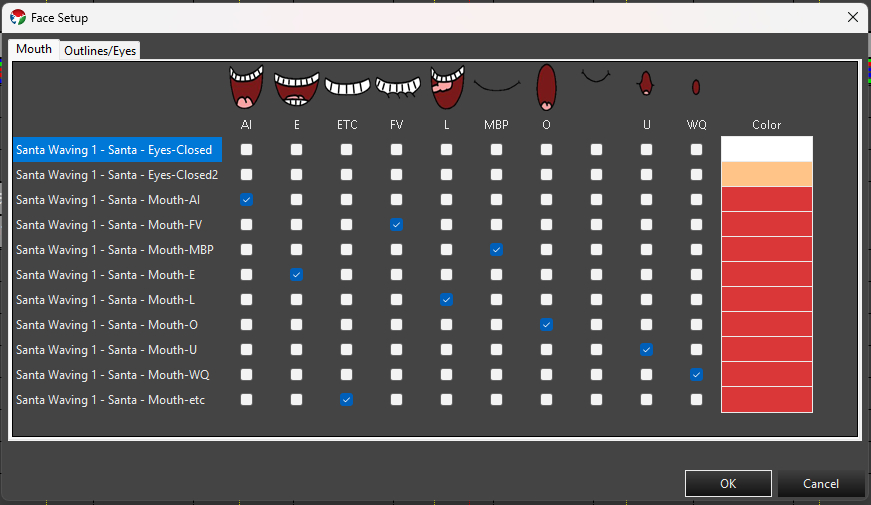
One checkbox column per phoneme — AI, E, ETC, FV, L, MBP, O, U, WQ, and REST (the standard Preston Blair/Papagayo set). Check the phoneme(s) that row’s element should light up for.
Outlines/Eyes
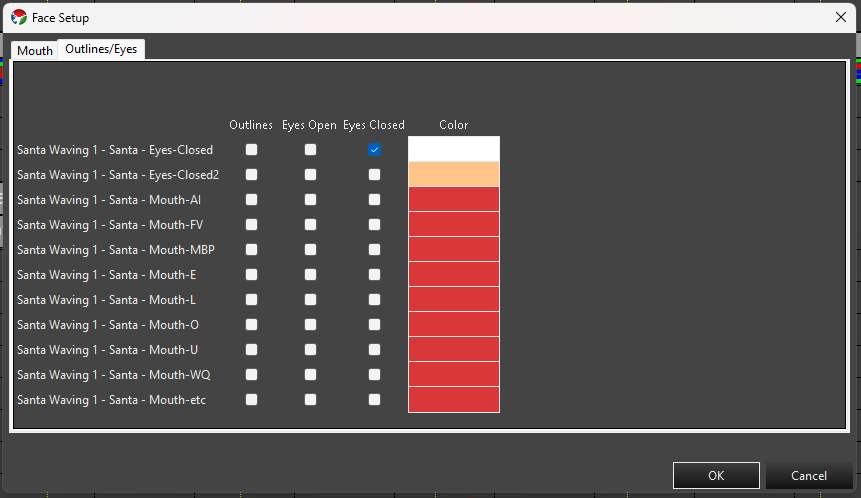
Checkbox columns for Outlines, Eyes Open, and Eyes Closed. Check the appropriate box(es) for that row’s element.
- Click a checkbox cell to toggle it. You can select multiple cells first (click, Ctrl-click, Shift-click, or drag across a range) — clicking any one of the selected cells then toggles the whole selection together: if fewer than half of the selected cells are currently checked, the click checks all of them; otherwise it unchecks all of them.
- Double-click a Color cell to open a color picker for that row’s element. If the target elements only support a fixed set of discrete colors, you get a picker limited to those choices; otherwise you get the full color picker. Multi-select several rows’ Color cells first and double-click one to apply the same color to all of them at once.
- OK writes the checked phonemes/components and chosen color to each element’s Face property. Cancel discards any changes made in the wizard.
Editing from the Sequence Editor
You don’t have to return to Display Setup to adjust face mapping. In the Sequence Editor, Tools -> LipSync -> Edit Element Face Mapping opens the LipSync Mapping Node Select dialog:
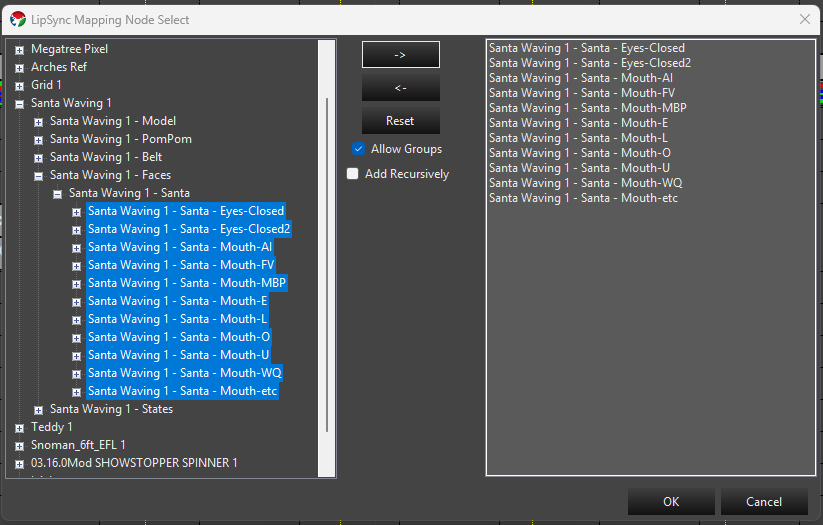
- Browse and select elements in the tree on the left, then press -> to move them into the list on the right — multi-select first to move several at once. <- moves selected items back out of the list, and Reset clears it entirely.
- Allow Groups (checked by default) lets you move a group node itself into the list as a single entry, instead of restricting the list to individual leaf elements.
- Add Recursively expands a moved group into its individual descendant elements in the list, instead of keeping it as one group entry.
- Once the elements you want to map are in the list on the right, press OK to open the same Face Setup wizard described above, for that selection.
This is a faster way to fix or build out face mapping without leaving your sequence.
Image Mapping
LipSync’s other Mapping Type, Image Mapping, doesn’t use the Face property or individual element mapping at all — it draws a phoneme image onto the target as if it were a pixel matrix, using shared image maps instead. See LipSync Image Maps for how to manage those.
Next Steps
Once your elements have Face properties configured, add a LipSync effect targeting a group that contains them, with Mapping Type set to Face Mapping.
Feedback
Was this page helpful?
Glad to hear it!
Sorry to hear that. Please tell us how we can improve.