Transparent Background
Overview
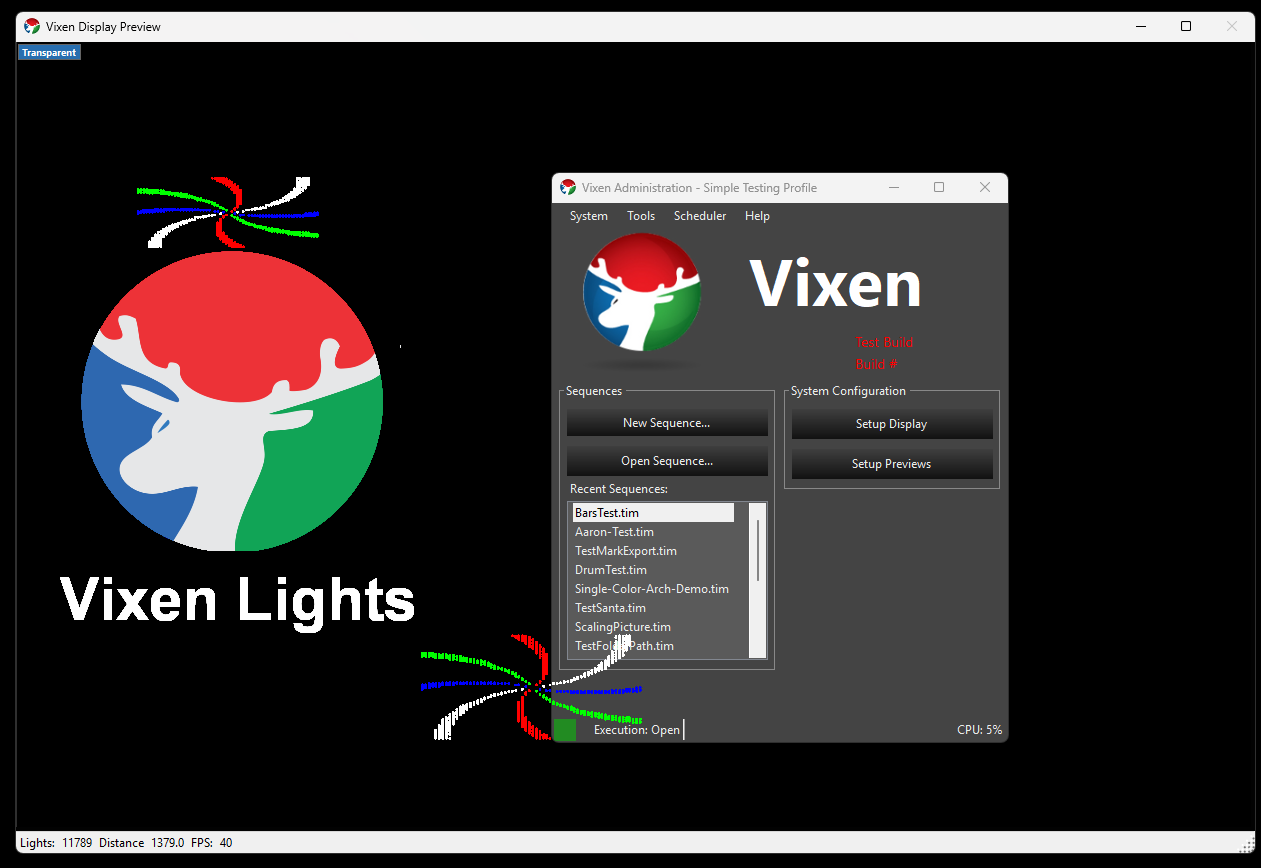
The Transparent Background feature allows the preview viewer window to render with a transparent background. When enabled, the unlit (off) areas of the preview — which are normally black — become transparent, so any window positioned behind the preview is visible through those dark areas. This makes it possible to overlay your light show preview on top of another application for monitoring or demonstration purposes.
Enabling Transparent Background
- Open the preview viewer by activating a preview from the Preview Setup screen.
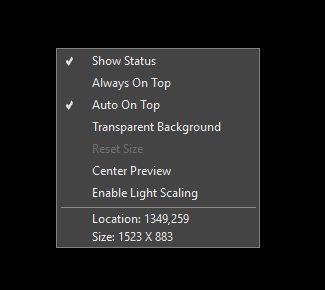
- Right-click anywhere on the preview window to open the context menu.
- Click Transparent Background to enable the feature. A checkmark will appear next to the item when it is active.
To disable, click the blue Transparent button in the upper left corner.
To access the context menu while in transparent mode, right-click the blue Transparent button in the upper left corner.
The setting is saved automatically and will be restored the next time the preview window is opened.
Behavior
- Unlit areas become transparent — Pixels with no active light output (black) appear transparent, revealing whatever window is behind the preview.
- Lit pixels remain opaque — Colored pixels produced by active lights are fully visible and unaffected by what is behind the preview window.
- Background image is suppressed — Any background image configured for the preview will not be displayed while Transparent Background is enabled. The background image and transparent background mode are mutually exclusive. The background image is restored when the feature is disabled.
Limitations
| Limitation | Detail |
|---|---|
| Transparent areas are click-through | This is a Windows platform behavior. Any area that appears transparent also passes mouse clicks through to the window below. Clicks on lit (colored) pixels are still captured by the preview. |
| Windows 10 / 11 only | The feature relies on the Windows Desktop Window Manager (DWM) compositor and has not been validated on older versions of Windows. |
| Exactly-black lights appear transparent | Any light element rendering at precisely zero intensity (pure black) will be visually transparent. This is expected — “off” lights should not be visible. |
| Incompatible with background image | The loaded background image is hidden while transparent mode is active. |
Feedback
Was this page helpful?
Glad to hear it!
Sorry to hear that. Please tell us how we can improve.